
Controlling Raspberry Pi GPIOs over Bluetooth with an Android App
There are many great ways to control Raspberry Pis’ GPIOs such as through a webserver, with an automated algorithm or by directly logging on the Pis. One feature of the newer Pis, that is often overlooked, is the Bluetooth. If you are using the Pi as a linux computer, you could use the bluetooth to connect to a wireless keyboard. However, most of the time, the Bluetooth is one of those features that is left out in projects. This post focuses on controlling Raspberry Pi GPIOs over Bluetooth with an android app.
Prerequisites
For this post, we are using a Raspberry Pi Zero W. You could also use a Raspberry Pi 3.
Make sure that you have the latest Raspbian installed on your SD and connect to the Pi through Putty or open up a terminal if you have peripherals connected to your Pi. You can alternatively connect to the Pi interactively using VNC. For more information, please visit our beginner’s guide to the Pi.
Start installing the following:
First of all, update the Raspbian:
sudo apt-get update
sudo apt-get upgrade
In your terminal type the following to launch the Bluetooth tool:
sudo bluetoothctl
On the Pi, the Bluetooth should be turn on by default but if it is not, you can enable it with:
power on
To make sure that Bluetooth is running:
agent on
If you want to scan for devices:
scan on
To exit the Bluetooth tool:
quit
Install the packages related to Bluetooth. Bluez is the official Bluetooth protocol stack that supports all the core Bluetooth protocols.
sudo apt-get install bluetooth bluez
Install the python library for Bluetooth communication.
sudo apt-get install python-bluez
Finally, reboot your Pi
sudo reboot
Simple Python script for receiving data
Create a new file, put the following and save it with .py extension. In our case, we named it BT1.py.
import bluetooth
server_sock=bluetooth.BluetoothSocket( bluetooth.RFCOMM )
port = 1
server_sock.bind(("",port))
server_sock.listen(1)
client_sock,address = server_sock.accept()
print "Accepted connection from ",address
while True:
    recvdata = client_sock.recv(1024)
    print "Received \"%s\" through Bluetooth" % recvdata
    if (recvdata == "Q"):
        print ("Exiting")
        break
client_sock.close()
server_sock.close()
In a terminal on the Pi or through Putty, make sure that bluetooth is discoverable:
sudo bluetoothctl
power on
discoverable yes
quit
Or you can simply type the following, it will have the same effect.
sudo hciconfig hci0 piscan
Then run the python program:
python BT1.py
On our Android device, we are using BlueTerm (free from the Play Store) to connect and send data to the Pi.
Success! Our Android device is talking to the Pi. However, we are far from controlling the GPIOs.
Controlling Raspberry Pi GPIOs over Bluetooth with an Android App
We ended up creating a custom app for Android as opposed to relying on BlueTerm. To download a copy of the APK, please visit our Github.
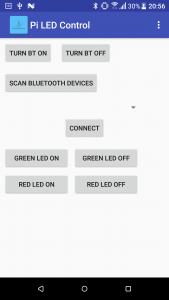
We modified the python file to include a few more things such as UUID. The Android APK simply sends strings over Bluetooth to the Pi. For example, when the Green LED On button is pressed, a string “GreenOn” is sent over Bluetooth. The python script then decides what to do accordingly. For instance, with “GreenOn” received, the pi will turn GPIO 18 to HIGH:
if data == "GreenOn":
            GPIO.output(18,GPIO.HIGH)
Here is a quick demo of everything in action:
All the codes, including the LEDControlServer.py, can be found on our Github, please follow the link. For any queries, please email us at [email protected]
Related Posts


About The Author

behindthesciences
We are two engineers who work in the Electronic and Telecommunication industry. We regularly blog in our spare time.