
Python GUI for controlling an Arduino with a Servo

Python is a very versatile programming language that is used to run embedded software on Linux devices such as the Raspberry Pi or to write scripts to automate test. Python can also be used to create GUI on a computer. There are various software packages out there that includes all the Python GUI library. We however found Tkinter to be the most simple of them all. In this post, we are going to show you how to write a very simple GUI in Python to control a servo connected to an Arduino.
The Python GUI presented in this post sends commands over serial which is then interpreted by the firmware running on the Arduino.
Requirements
- First of all, download Tkinter and install it.
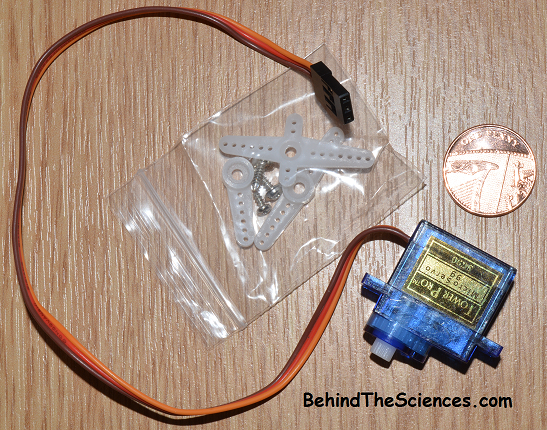
- Get some servos. We bought a couple of 10X2XSG90 9G Micro Servo Motor on GearBest for £1.96.
- An Arduino
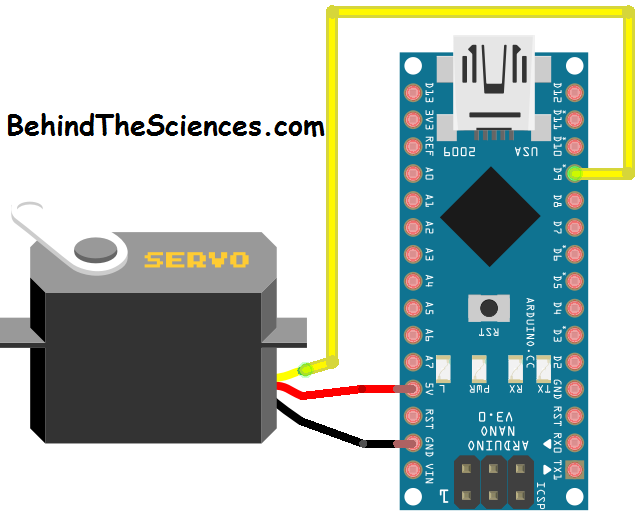
Arduino Servo Connections
Arduino Code
To keep things simple, we are going to use the Arduino servo library but you can also write your own library if you wish. If you want to know more on how servos can be controlled, visit this tutorial from Sparkfun.
#include <Servo.h>
Servo myservo;  // create servo object to control a servo
int pos = 90;    // variable to store the servo position
void setup() {
        Serial.begin(9600);
        myservo.attach(9); //Servo connected to D9
}
void loop() {
        // send data only when you receive data:
        while (Serial.available() > 0) {
                // read the incoming byte:
                int c = Serial.read();
                delay(2);
                // say what you got:
                Serial.print("C is ");
                Serial.println(c, DEC);
                myservo.write(c);
        }
}
Python GUI code
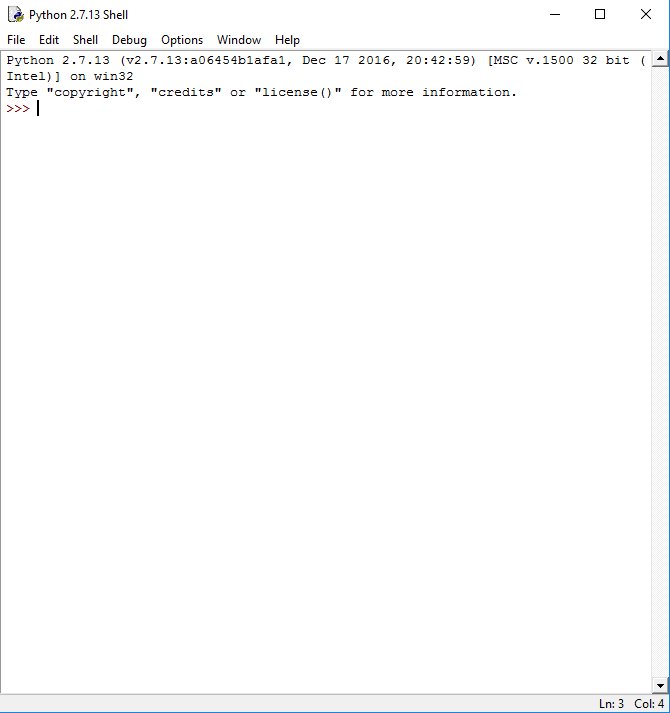
After you install Tkinter, open up “IDLE(Python GUI)”. You will be greeted with this window:
To start writing your Python GUI code, go to File and click on New File to get a new window:
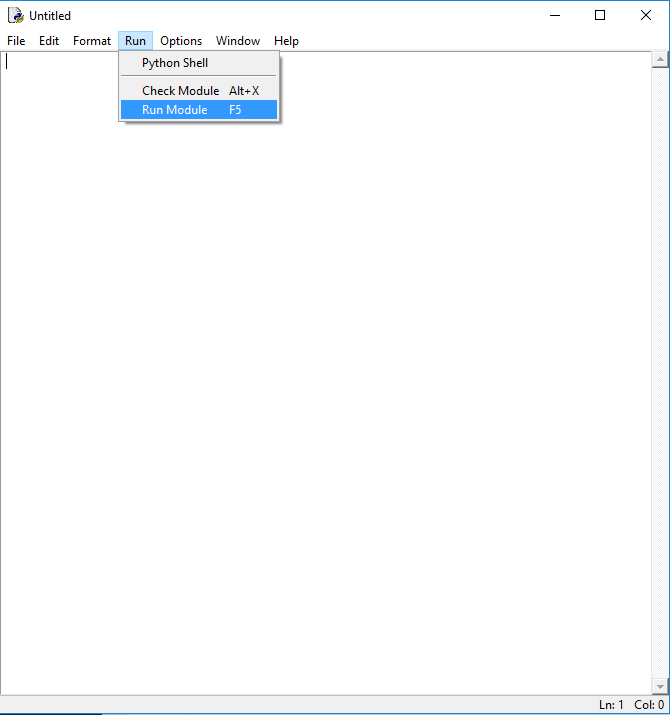
This is where you type your python code and to run it, go to Run and click on Run Module.
A good website for simple Python GUI example and tutorials, visit TutorialPoint.
The Python Code we wrote to control the Servo is:
# -*- coding: utf-8 -*-
from Tkinter import *
import sys
import glob
import serial
import time
RightLeftCounter = 90
class App:
  def __init__(self, master, ser):
    self.ser  = ser
    self.button = Button(master,
                         text="QUIT", fg="red",
                         command=quit)
    self.button.grid(row=0, column=0, padx=0, pady=0, sticky="nw")
    self.slogan = Button(master,
                         text="Reset",
                         command=self.write_reset)
    self.slogan.grid(row=0, column=4, padx=0, pady=0, sticky="nw")
    self.Left = Button(master,
                         text="←",padx=10,
                         command=self.write_Left)
    self.Left.grid(row=0, column=1, padx=0, pady=0, sticky="nw")
    self.Right = Button(master,
                         text="→",padx=10,
                         command=self.write_Right)
    self.Right.grid(row=0, column=6, padx=2, pady=0, sticky="nw")
    self.sweep = Button(master,
                         text="Sweep",
                         command=self.write_sweep)
    self.sweep.grid(row=0, column=8, padx=0, pady=0, sticky="nw")
  def write_Left(self):
    global RightLeftCounter
    if (RightLeftCounter>0):
      RightLeftCounter -=1
    self.ser.write(chr(RightLeftCounter))
    print(RightLeftCounter)
    print self.ser.readline()
  def write_Right(self):
    global RightLeftCounter
    if (RightLeftCounter<180):
      RightLeftCounter +=1
    self.ser.write(chr(RightLeftCounter))
    print(RightLeftCounter)
    print self.ser.readline()
  def write_reset(self):
    global RightLeftCounter
    RightLeftCounter = 90
    print(RightLeftCounter)
    self.ser.write(chr(RightLeftCounter))
    print self.ser.readline()
  def write_sweep(self):
    global RightLeftCounter
    for RightLeftCounter in range(0,180):
      print(RightLeftCounter)
      self.ser.write(chr(RightLeftCounter))
      print self.ser.readline()
      time.sleep(0.01) # delays for 1 seconds
    RightLeftCounter = 90
    self.ser.write(chr(RightLeftCounter))
def main():
  ser = serial.Serial()
  ser.port = 'COM4'
  ser.baudrate = 9600
  ser.timeout = 0
  # open port if not already open
  if ser.isOpen() == False:
    ser.open()
  root = Tk()
  root.title("BehindTheSciences.com")
  root.geometry("300x50+500+300")
  app = App(root,ser)
  root.mainloop()
if __name__ == '__main__':
  main()
You need to edit the COM port to match your Arduino. Run the Python code and you should get a window like this:
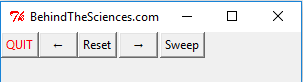
The default position is at 90 degrees. The “sweep” button makes the servo move from 0 to 180 degrees and the reset sets it back to 90 degrees.
Happy programming. Contact us on [email protected] for further help.
Related Posts


About The Author

behindthesciences
We are two engineers who work in the Electronic and Telecommunication industry. We regularly blog in our spare time.
Hi, will this work on python 3.4+? I tried to run the code but I get encoding errors back from arduino, expecting byte
Not sure. We have not tried it in 3.4. Sorry.
Hi, can try to do it with serial or Ethernet shield instead of Tkinter? Thank you very much
Please send us an email at [email protected]
I sent it